Blank Screen

This isn't a very exciting section, but it's the first one and needs to be successfully completed otherwise you won't be able to do the other sections. The whole point of this section is just to get a blank screen up. We're not going to draw anything to it yet. Let's just make sure that we have everything installed correctly.

I don't know what operating system you're using. I use Windows and Ubuntu, depending on my mood. I think most people use either Windows, Mac, or Ubuntu. If you're using something else, then I can't help you with your setup. But, getting started is pretty easy, all you need is Python3 installed. There's a lot of great resources out there and there's no point in me repeating what you can find through a simple Google search. But I'll at least tell you what you need.

Well that's about all we'll need. I know you may be wondering about graphics software and sound editing software and whatever else. We won't use any of that until much later. Oh, one more thing. We'll also need our imagination. I won't blame you for rolling you're eyes, I rolled my own eyes at that.


Screen Dimensions

Tile Grid


Constants

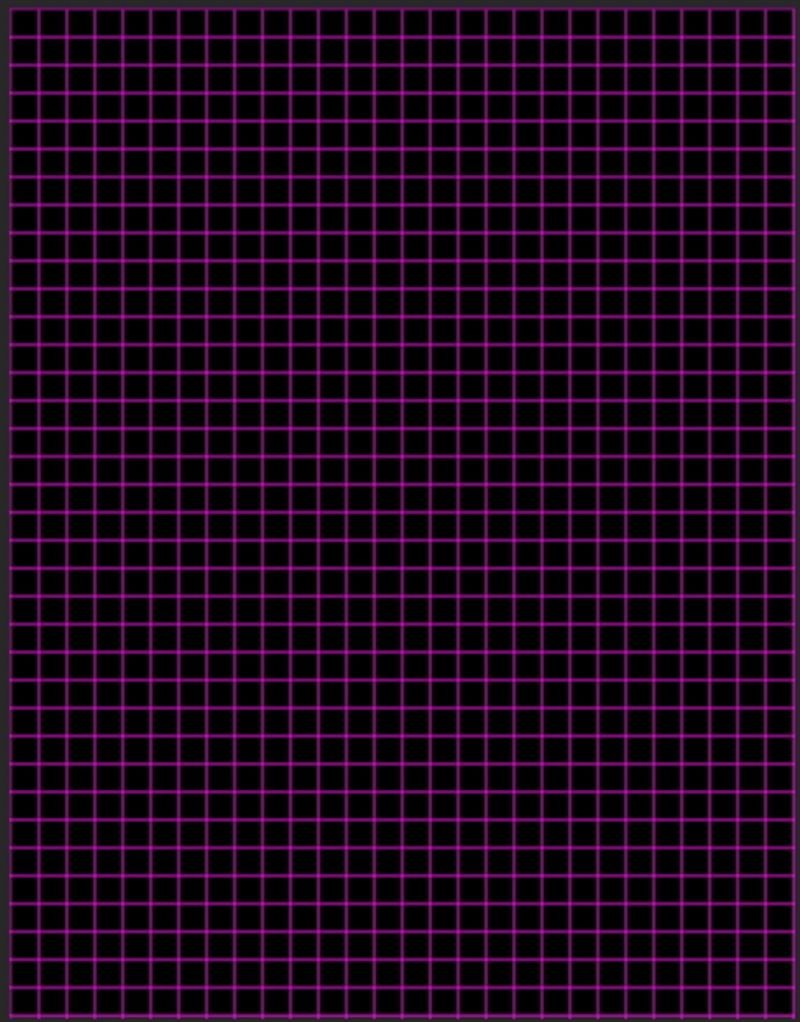
We'll store any value that doesn't change (constants) in a single file. That way if we need to manually change these values we don't have to search many files for them. It's just a good idea to keep these in a single file. Any other file that needs these files can import this file. So create a file called constants.py and put the code on the right into it. This is just the code that we discussed in the previous section concerning the size of the window and such. I like to make my constants ALL CAPS, it makes them easier to find. I also defined the color black. We'll define colors here as RGB tuples. Each value in the tuple ranges from 0 to 255. So black is (0, 0, 0) and white would be (255, 255, 255). We'll define more colors as we go so we'll be modifying this file fairly often. The width and height of each tile is 16 pixels. Our screen then is 28 tiles wide and 36 tiles high.

constants.py

                          
TILEWIDTH = 16
TILEHEIGHT = 16
NROWS = 36
NCOLS = 28
SCREENWIDTH = NCOLS*TILEWIDTH
SCREENHEIGHT = NROWS*TILEHEIGHT
SCREENSIZE = (SCREENWIDTH, SCREENHEIGHT)
BLACK = (0, 0, 0)


GameController Class

We need an entry point to our game when we first run it.

Start by creating a file called run.py. This is going to be our main file. Anytime we want to run the game we just need to type python run.py from a terminal.

At the top of the file we'll import pygame. Notice that there are 2 lines here, we need to add both of them. We also want to import the constants file we created above.

Next we are going to create a class called GameController. The first thing we need to do is initialize pygame. Then we define the screen using the values from the constants.py file. We then call a method that sets up the background. We haven't created that yet.

run.py

                          
import pygame
from pygame.locals import *
from constants import *

class GameController(object):
    def __init__(self):
        pygame.init()
        self.screen = pygame.display.set_mode(SCREENSIZE, 0, 32)
        self.background = None


Set Background

We create a background and set it to the color BLACK that we defined in the constants.py file.

run.py

                          
def setBackground(self):
    self.background = pygame.surface.Surface(SCREENSIZE).convert()
    self.background.fill(BLACK)


Start and Update Methods

The startGame() is just an empty method for now. We will fill this in later, so for now we can just use the keyword pass. We can call this method, it just won't do anything yet.

The update() method is a method that we call once per frame of the game. It's basically our game loop. Right now we're just calling 2 methods that we haven't created yet.

run.py

                          
def startGame(self):
    self.setBackground()

def update(self):
    self.checkEvents()
    self.render()                                     


Event Checker and Renderer

The checkEvents() method checks for certain events. Right now it is just checking to see when we exit out of the game. That's when the user closes the window by pressing the 'X' button. If we didn't include this code, then the 'X' button that you normally press to close the window won't work and you'll have to force this window to close. So, this is good to have.

The render() method is the method we'll use to draw the images to the screen. We don't have anything to draw to the screen yet though. So basically what will happen when you start this program is that a window will open and it will stay open till the end of time since it's in an infinite loop. The program is constantly checking to see if you've pressed the window's close button. If you do press the close button, then the window will exit and the program will end.

run.py

                          
def checkEvents(self):
    for event in pygame.event.get():
        if event.type == QUIT:
            exit()

def render(self):
    pygame.display.update()                                     


Game Loop

I'm only showing the GameController class on the first line to show you where to put this next bit of code. You basically want to put it after the GameController class. Make sure it is not inside of the GameController class.

When we call python run.py from the terminal, this is where the execution starts. We first need to create an instance of the GameController class. We then call the startGame method, which is empty for now. Then we start an endless loop and continually call the update method.

From your command line and from within the Pacman folder type the following to run the program: python run.py or python3 run.py

run.py

                          
class GameController(object):
    ...


if __name__ == "__main__":
    game = GameController()
    game.startGame()
    while True:
        game.update()                                    


Run and Finish

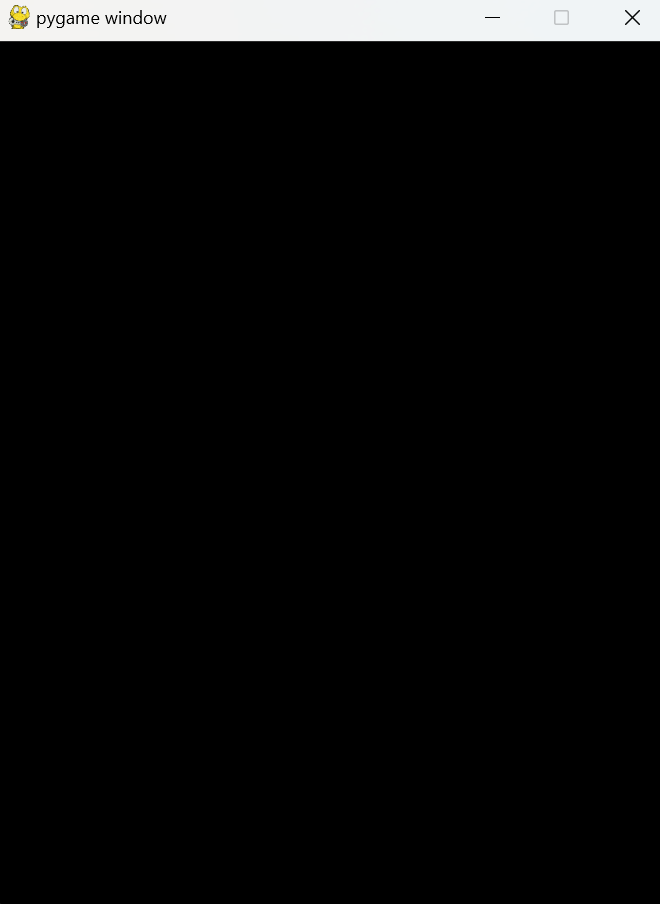
If all is successful you should see a black window open up. If you get some errors then check your code and make sure all of your indentations are correct. Make sure this is working before moving on.

Blank Screen


Download

You can download the files up to this point by clicking on the following folder.

Blank Screen