
Why do we need to know physics in order to move something around on the screen? Why can't we just update the x and y positions like we mentioned above? One problem with that, out of many, is that the speed the circle moves will be dependent on the computer the player is using. On a faster computer, the circle will move faster because it will be able to move that many pixels more often than on a slower computer. We want our yellow circle to move at the same speed no matter how fast or slow the computer is. So, in order to do that we need to actually calculate the number of pixels to move rather than have a fixed number of pixels. The number of pixels will be different from computer to computer. But how do we calculate this? That's where some physics comes in handy.
Basic Movement
Now that we have a blank screen let's do something with it. What we will do in this section is draw a yellow circle on the screen, and move it around the screen with the keyboard. This will be the start of our Pacman character. We will use the directional keys in order to move Pacman around. Pacman can only move around in one of four directions: up, down, left, and right. Pacman can only move in one of these directions at any one time, he does not move in a diagonal at any time. The basic idea behind movement is that when the player presses a directional key, LEFT for example, the yellow circle will move a few pixels to the left. We do that by decreasing it's x value by a certain number of pixels. The more pixels we move the circle the faster it will appear to move. Since the yellow circle will be our current representation of Pacman, we'll create a Pacman class. But before we can move things around the screen, lets learn a few basic physics.
Note
Equation of 2D motion
So in this equation, s0 is our current position whether it's our x-position or our y-position. v is our velocity which is a vector so it includes our speed and direction. s(Δt) is our new position. Δt is the time it will take to get us to our new position, and a is the acceleration of our object as it is traveling to the new position. We can simplify this equation quite a bit because our acceleration will always be 0. You only need acceleration if an object is speeding up or slowing down. Pacman and all of the other things that move in our game are either not moving, or moving at full speed. An object that has constant velocity has 0 acceleration even if it is moving really fast. Remember that acceleration is just a change in velocity. So using that fact we can simplify the equation to the following:
Equation
s(Δt) = s0 + vΔt + ½*aΔt2Equation of 2D motion: a=0
So in order to calculate the new position all we need to know is our current position, the direction and speed we want to move in, and the time it will take to get there. In the next section we'll figure out how to deal with this timing issue. It's actually really easy since pygame includes some timing packages.
Equation
s(Δt) = s0 + vΔtTime
We need to initialize a clock. We can define a clock in pygame with the statement below. We need to add this line to the __init__ method in the GameController class in the run.py file. The ... just means that there's other code there, but I didn't feel like writing everything out again. Just add the blue line to the end of the method.
run.py
def __init__(self):
    ...
    self.clock = pygame.time.Clock()
New Constants
Pacman is yellow, so lets add a new color here: Yellow. Yellow is a mixture of red and green so we set those to 255 and blue to 0.
constants.py
YELLOW = (255, 255, 0)
Pacman Class
Well, we have everything in place, so now we can actually create our Pacman object. We can just simply draw a circle and move it around, but let's put in some extra work and actually make a Pacman class that we'll build off of in later sections.
We'll create a file called pacman.py and as we've done before we'll start the file off with some imports. These lines should look familiar to you by now I hope.
This is the start of the Pacman class. When we create a Pacman object we'll give it a name of "pacman". We don't have to do this, but it'll come in handy later on. We also give it an initial position of (200, 400). This will change later on, but for now you can input any initial position here.
The initial direction of Pacman is no direction because we don't want him moving unless we say so. That's why we set his direction to an empty vector. We also specify his speed, color, and radius. The radius is just how big we want him to be since at this time we're just going to represent Pacman as a yellow circle with a radius of 10 pixels.
In the update method we check to see if any of the valid keyboard keys are being pressed. We then use that direction to move the yellow circle.
Notice for Pacman's speed we have "100 * TILEWIDTH/16". This is so that Pacman's speed is always the same relative to the size of the maze since by default each tile in our maze is 16x16 pixels. If you instead change the maze to other sizes like 8x8, 24x24, 32x32 or 64x64 then Pacman won't appear to move too fast or too slow.
pacman.py
import pygame
from pygame.locals import *
from constants import *

class Pacman(object):
    def __init__(self):
        self.position = pygame.Vector2(200, 400)
        self.direction = pygame.Vector2()
        self.speed = 100 * TILEWIDTH/16
        self.radius = 10
        self.color = YELLOW

    def updateDirection(self, direction):
        self.direction = direction

    def update(self, dt):
        self.position += self.direction*self.speed*dt
Check Valid Key Presses
This is the class that gets called in our update method. We check for key presses since we want to detect if the user is pressing the correct keys. If we detect that the user has pressed either the UP, DOWN, LEFT, or RIGHT keys then we can just return the corresponding key. If none of these keys are being pressed, then we return an empty vector making our Pacman stop moving.
run.py
def getValidKey(self):
    key_pressed = pygame.key.get_pressed()
    if key_pressed[K_UP]:
        return pygame.Vector2(0, -1)
    if key_pressed[K_DOWN]:
        return pygame.Vector2(0, 1)
    if key_pressed[K_LEFT]:
        return pygame.Vector2(-1, 0)
    if key_pressed[K_RIGHT]:
        return pygame.Vector2(1, 0)
    return pygame.Vector2()
Render Pacman
We need to be able to draw Pacman to the screen so we include his own render method here. Like I said before we're representing him as a circle, so that's what we'll draw to the screen.
pacman.py
def render(self, screen):
    pygame.draw.circle(screen, self.color, self.position, self.radius)
Event Checker and Renderer
Now that we have our Pacman class we can go back to the run.py file and make a Pacman object from our class. Follow the simple steps below and you'll be good to go.
At the top of the run.py file we need to import our pacman.py file so we can use the Pacman class.
Create the Pacman object in the startGame method right after we set the background.
In the update() method, right after we get the value for dt, we'll make a call to pacman's update method passing in the dt value we got from the previous line.
Finally, we modify our render() method by adding these two lines. We want these two lines to appear before the line we've already added which updates the display. The first one we add in order to redraw the background. If we don't add this and if there are any objects that move, they'll appear as if they are smearing across the screen. We need to erase the objects and redraw them at their new positions. The object will still move, but all of the images of the object at the previous positions will still be on screen as well. So we need to basically erase all of the objects and redraw them at their new positions. Try the code out with this line commented out to see what I mean. And of course we need to tell the Pacman object to render as well.
run.py
...
from pacman import Pacman

def startGame(self):
    self.setBackground()
    self.pacman = Pacman()

def update(self):
    dt = self.clock.tick(30) / 1000.0
    direction = self.getValidKey()
    self.pacman.updateDirection(direction)
    self.pacman.update(dt)
    self.checkEvents()
    self.render()

def render(self):
    self.screen.blit(self.background, (0, 0))
    self.pacman.render(self.screen)
    pygame.display.update()
Run and Finish
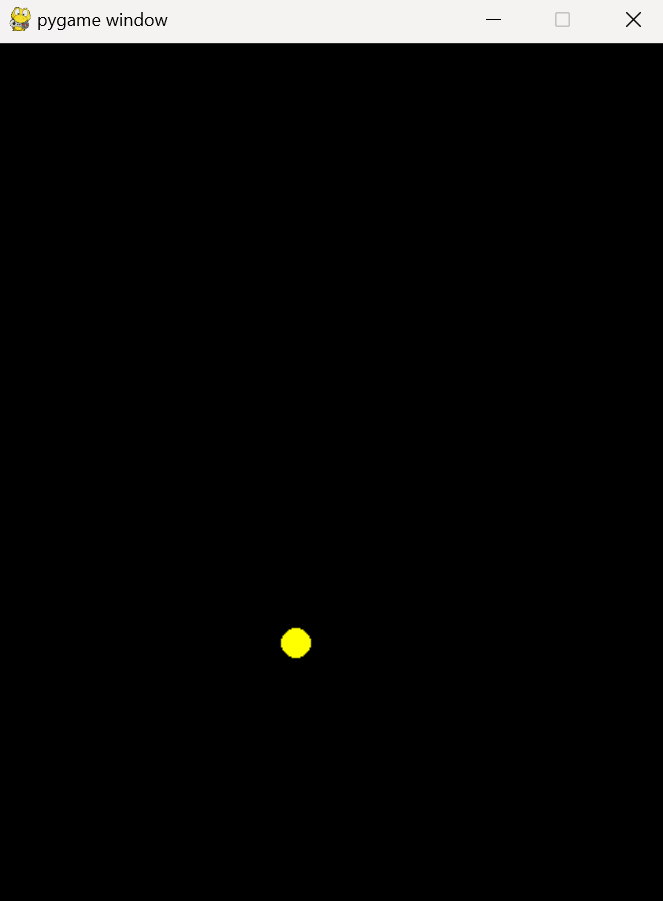
When all is complete, run the program and you'll see a yellow circle at the initial position we set on the screen at (200,400). Use the directional keys on your computer to move him around the screen. Now lets talk about one of my favorite topics: Nodes!
Basic Movement
Download
You can download the files up to this point by clicking on the following folder.