
Visit the devkitpro site and follow the instructions for your particular operating system. There are instructions for Windows, macOS, and Unix-like platforms available.
Links
This page describes where to download the devkitpro installer that you'll need in order to follow along with the projects on this site. Follow these instructions and refer back here whenever you start a new project. Good luck!
Visit the devkitpro site and follow the instructions for your particular operating system. There are instructions for Windows, macOS, and Unix-like platforms available.
If you're using a Windows machine you can just use the link provided here if you haven't done so already. Just download the execuatable and run it.
Verify that you have the following Environment Variables setup after installation:
| Variable | Value |
|---|---|
| DEVKITARM | /opt/devkitpro/devkitARM |
| DEVKITPPC | /opt/devkitpro/devkitPPC |
| DEVKITPRO | /opt/devkitpro |
| PATH | c:\devkitPro\msys2\usr\bin |
The last variable is your PATH variable and there will be a lot of paths there. You just need to add this path to that variable if it's not there already.
Anywhere on your system create a folder and within that folder create two more folders called 'include' and 'source'. The 'include' folder is where all of your header (.h) files will go and the 'source' folder is where all of your c/c++ (.c/.cpp) files will go. Make sure that there are no spaces in any of the folder names.
Along with the folder names we just created, you also need the Makefile. You can get the Makefile by copying the one provided in your devkitpro that you installed earlier. The path to it is devkitpro/examples/gba/template/Makefile
Write a simple C++ file that essentially does nothing in order to verify that you're able to compile. Place this file in the 'source' folder that your created in a previous step.
int main()
{
    while(1);
    return 0;
}
In order to compile the program and create the necessary .gba binary file, simply open up a terminal, navigate to your folder, and type 'make'.
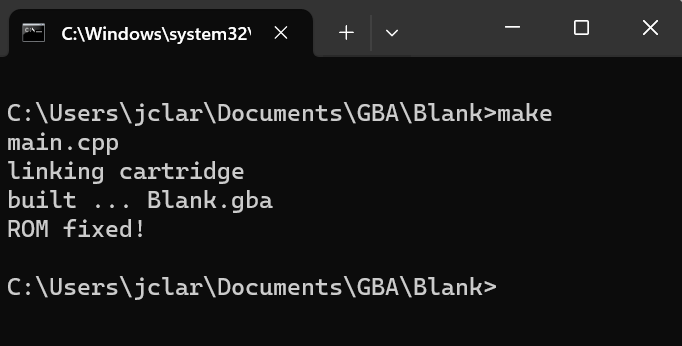
Once you've successfully compiled your program the folder structure will change. A new folder called "build" will be added along with 2 new files: a .elf and a .gba file with the name of the main folder as their names. This is one reason why you don't want to have spaces in your folder name.
If this compiles without any errors, then you should be good to go. Anytime you start a new project, just follow these steps to get started.